
On this page
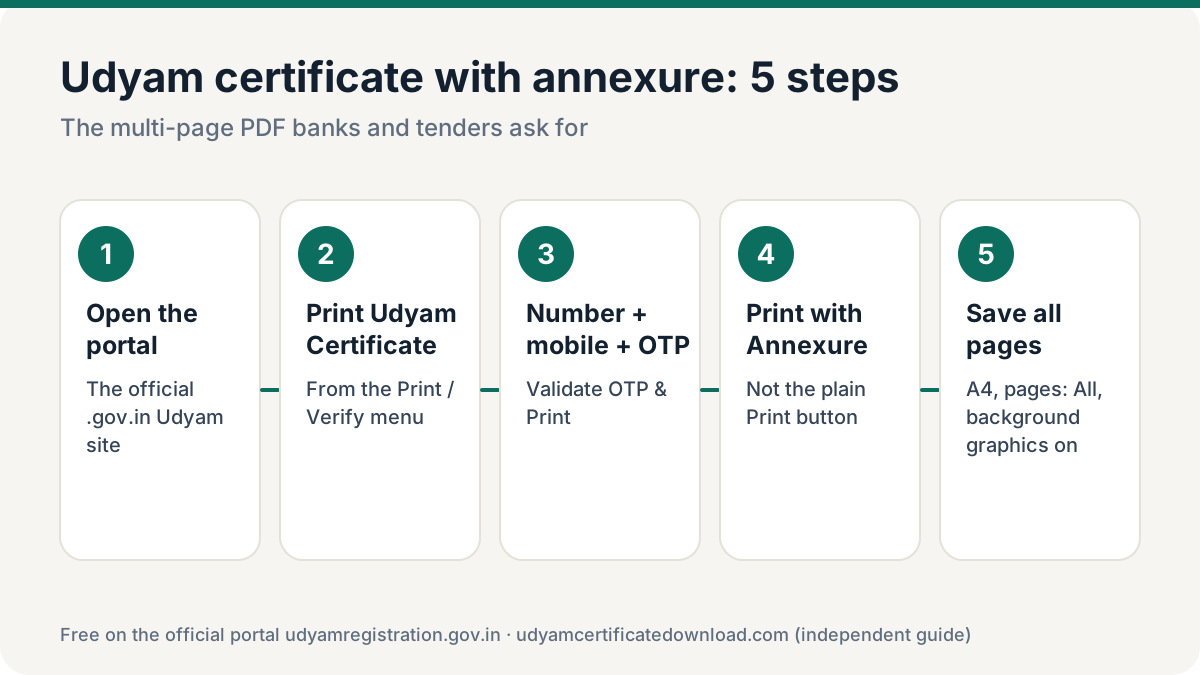
To download the Udyam certificate with annexure PDF, go to udyamregistration.gov.in → Print / Verify → Print Udyam Certificate, enter your Udyam number and registered mobile, verify the OTP and click Print with Annexure. Save it as PDF. It is free and usually runs to 3–4 pages, because the annexure adds classification history, activities and unit details.
What is the Udyam annexure?
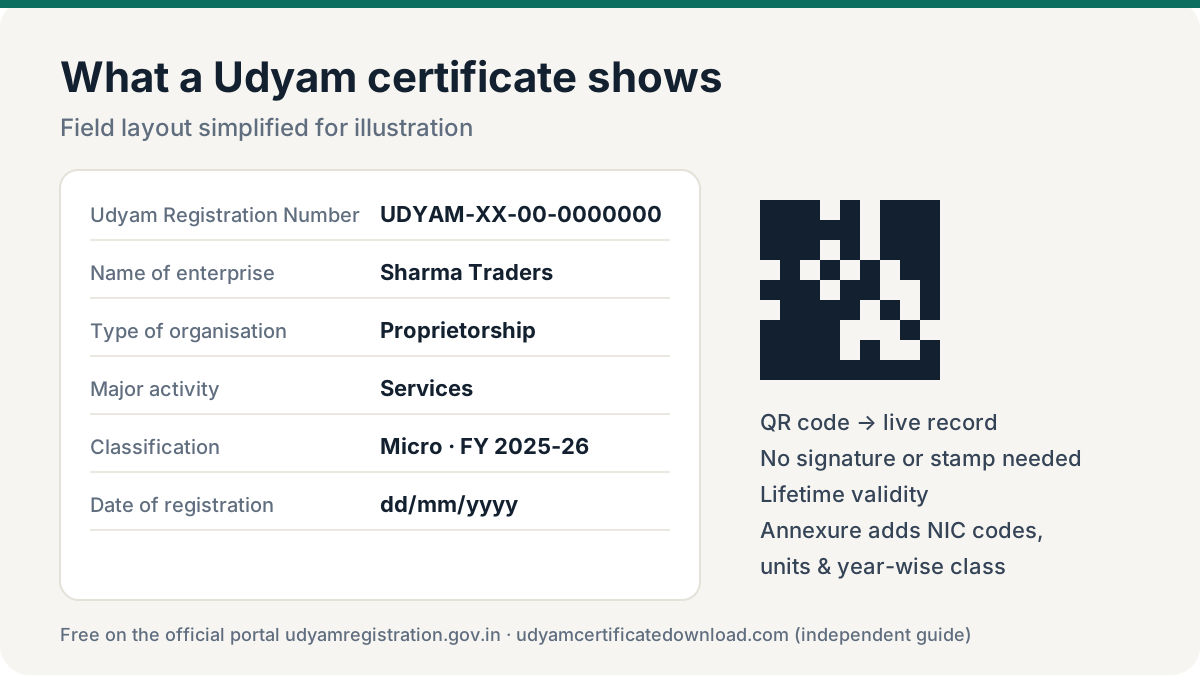
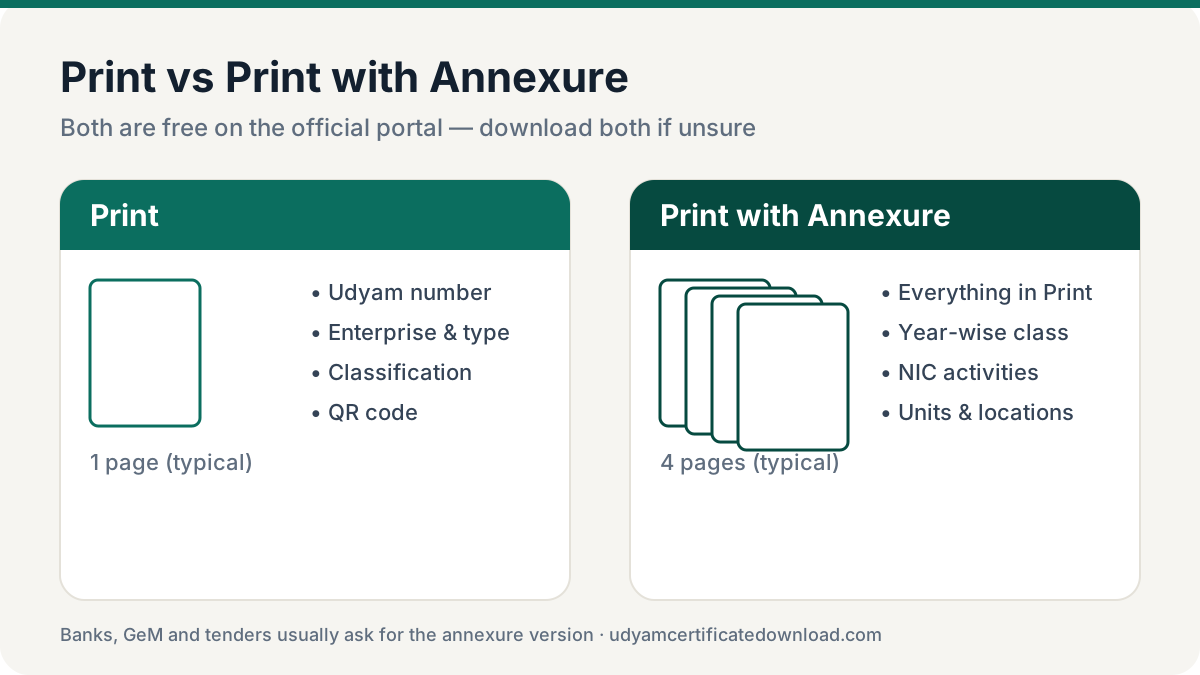
The standard certificate is a summary. The Udyam certificate with annexure adds the detail behind it. The annexure pages carry the detailed particulars of your registration that lenders and procurement officers check. Typically you will see:
Year-wise classification
Your Micro / Small / Medium status for each financial year, as updated from ITR and GST data.
Activities (NIC codes)
The National Industrial Classification codes and descriptions for manufacturing or services you declared.
Units and locations
Plant or unit names and addresses, along with the official address of the enterprise.
Registration particulars
Dates of incorporation, commencement and registration, enterprise type, and other key details.
The exact layout and number of pages depend on your registration — more units or more activity codes mean more pages. That is why searches for “Udyam certificate PDF 4 pages” usually mean the annexure version.
How to download Udyam certificate with annexure
Open the official portal
Go to udyamregistration.gov.in and open Print / Verify → Print Udyam Certificate.
Enter Udyam number and mobile
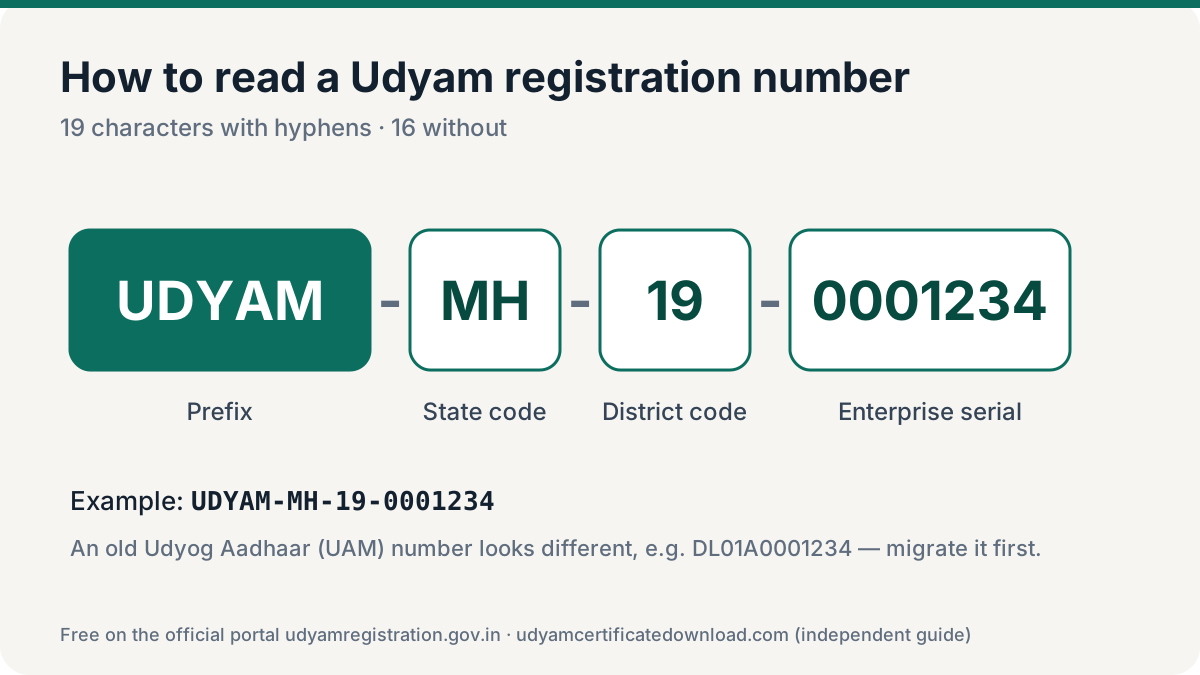
Use the format UDYAM-XX-00-0000000 and the mobile number filled in your application.
Generate and enter OTP
Choose mobile or email OTP, click Validate & Generate OTP, then enter it and click Validate OTP & Print.
Click Print with Annexure
On the certificate screen, choose the Print with Annexure button rather than the plain Print button.
Save all pages as one PDF
In the print window select Save as PDF, set Pages to All, paper size A4 and keep Background graphics on so the QR code prints clearly.
When do you need the annexure version?
| Use | Plain certificate | With annexure |
|---|---|---|
| Bank / NBFC loan file | Sometimes accepted | Usually requested |
| GeM seller registration | Accepted for MSME tag | Useful when activities are checked |
| Government tenders | Depends on bid document | Safer choice |
| Subsidy / scheme claims | Depends on scheme | Often required |
| Vendor onboarding with companies | Usually enough | On request |
If you are unsure, download both — the portal does not charge for either.
Printing tips
- Print in colour on A4 so the QR code scans reliably.
- Don’t crop or edit the PDF; submit it as downloaded.
- If your details changed, update the registration first — the annexure is regenerated from the current record.
- Print a fresh copy for important submissions so the generation date is recent.
Udyam certificate with annexure: common problems
- Only one page saved. The print window was set to “current page”. Set Pages to All so the Udyam certificate with annexure saves as one complete PDF.
- Annexure button missing. Scroll below the certificate preview; on small phone screens the Print with Annexure button sits under the certificate.
- Blank QR code. Turn on “Background graphics” in the print settings before saving.
- Old classification shown. The Udyam annexure reflects the current record — update your details first if anything changed.
Frequently asked questions
How do I download the Udyam certificate with annexure?
On udyamregistration.gov.in open Print / Verify → Print Udyam Certificate, enter your Udyam number and registered mobile, verify the OTP and click Print with Annexure. Save it as PDF.
Is the Udyam annexure download free?
Yes. Both Print and Print with Annexure are free on the official portal, with unlimited downloads.
Why is my Udyam certificate PDF 4 pages?
The Print with Annexure version adds pages for year-wise classification, activities and unit details. The page count depends on how many units and activities your registration has.
Is the annexure a separate certificate?
No. It is part of the same Udyam Registration Certificate, giving the detailed particulars behind the summary page.
The annexure shows old details. What should I do?
Update your Udyam registration on the portal and download again. The annexure always reflects the current record.